

TaskAGI now shows you exactly what each node in your workflow produced—in the format that makes sense for your use case. No more digging through logs or guessing what happened. Click a node, see its output in Pretty Text, JSON, or Raw format, and copy it instantly.
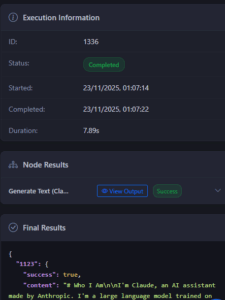
The new Output viewer in TaskAGI lets you inspect individual node execution results directly from your workflow canvas. Select any node to view its last output, or click “View Output” in execution history to see results from specific runs. Three viewing formats—Pretty Text (decoded and readable), JSON (structured and syntax-highlighted), and Raw (direct string output)—give you the exact view you need for debugging, documentation, or integration purposes.
Why This Matters for Workflow Debugging
Building AI agent workflows means connecting multiple nodes—LLM calls, data transformations, API integrations, database queries. When something goes wrong, you need to know where. When you’re integrating with external tools like Zapier, Make, or custom APIs, you need to see the actual output format.
Before this update, troubleshooting meant:
- Hunting through execution logs
- Guessing what data flowed between nodes
- Manually formatting outputs to understand structure
- Re-running entire workflows to inspect one node’s result
Now you click a node and see its output immediately. That’s it. No context switching, no log parsing, no guesswork.
## How the Output Viewer Works
The new Output tab (renamed from “Graph” for clarity) transforms how you inspect workflow execution. Here’s what you get:
Three Viewing Modes for Different Needs
Pretty Text: This is your go-to for readability. TaskAGI automatically decodes escape sequences—those `\n\n` characters that normally clutter output—into actual line breaks. The result is clean, human-readable text you can copy directly into documentation, READMEs, or share with team members. No parsing required.
JSON: When you need structure, JSON mode shows formatted, syntax-highlighted JSON output. Perfect for understanding data hierarchy, spotting missing fields, or validating that your LLM returned the expected schema. Copy it into your API calls or database operations without reformatting.
Raw: Sometimes you need exactly what came out, unmodified. Raw mode gives you the direct string output—useful when you’re debugging escape sequence handling or need the literal output for specific integrations.
Smart Auto-Loading from Canvas
Click any node on your workflow canvas and TaskAGI automatically loads its last execution result. No buttons to click, no menus to navigate. The system knows whether you’re looking at a completed run or need to fetch results from execution history, and it handles both seamlessly.
View Specific Execution Results
Your workflow might have run dozens of times. The “View Output” buttons in execution history let you inspect results from any specific run—useful when you’re tracking down when something broke or comparing outputs across different test scenarios.
One-Click Copy with Proper Formatting
Copy buttons in each view format the output correctly for its context. Copy from Pretty Text and you get readable text. Copy from JSON and you get valid JSON. No formatting surprises when you paste.
## Real Use Cases This Solves
Debugging AI Model Outputs
Your LLM is returning structured data, but it’s not parsing correctly downstream. View the JSON output, spot the unexpected field name or missing data, and adjust your prompt or parsing logic. All without re-running the entire workflow.
Validating Data Transformations
You’re transforming customer data before sending it to your CRM or marketing platform. See exactly what format the transformation node produced, verify it matches your destination system’s requirements, and catch mismatches before they cause sync errors.
Testing API Integrations
Building a workflow that calls external APIs? View the raw response, inspect the JSON structure, and confirm your parsing logic handles the actual data format. No more assumptions about what the API returns.
Documentation and Handoffs
Documenting your workflow for team members or clients? Copy Pretty Text output directly into your documentation. It’s already formatted cleanly—no cleanup needed.
Audit and Compliance
Need to verify what data flowed through a specific execution for compliance or troubleshooting? View the exact output from any historical run and confirm data integrity.
How This Integrates with Your Workflow
The Output viewer works seamlessly within TaskAGI’s visual workflow builder. You’re not leaving your canvas to inspect results. You’re not switching to a separate debugging tool. It’s built into the platform, using proper Laravel route helpers to ensure URLs work correctly across all environments—development, staging, production.
This means:
- Faster debugging: See results instantly without context switching
- Better collaboration: Share formatted output with team members without reformatting
- Cleaner workflows: Understand data flow between nodes at a glance
- Fewer failed runs: Catch data issues before they cascade through your workflow
Works with Any Node Type
Whether your workflow includes AI model calls, web scrapers, database queries, payment processors, CRM integrations, or custom API calls, the Output viewer shows you what each node produced. The format adapts to the data—text, JSON, structured responses, raw strings.
## Common Questions
Can I view outputs from failed executions?
Yes. If a node failed but produced output before failing, you can still inspect it. This helps identify whether the failure was in the node itself or in downstream processing.
How far back can I view execution history?
You can access any execution that’s stored in your workflow history. The “View Output” buttons in execution history let you inspect results from any past run.
What if a node produced no output?
The viewer will indicate that clearly. This helps you spot nodes that should have produced output but didn’t—a common debugging scenario.
Can I export outputs for external analysis?
Copy the formatted output in whatever view you need (Pretty Text, JSON, or Raw) and paste it anywhere. The copy function preserves formatting, so JSON stays valid JSON and text stays readable.
Does this work with real-time executions?
Yes. As your workflow executes, you can view node outputs as they complete. The Output viewer updates to show the latest results from your canvas nodes.
Next Steps
The Output viewer is live now. Open any workflow, run it, and click a node on your canvas to see its output. Try all three formats—Pretty Text for readability, JSON for structure, Raw for exact output. Use “View Output” in execution history to inspect specific runs. Copy outputs directly into documentation, API calls, or wherever you need them.
Better debugging means faster iteration. Faster iteration means you deploy AI agents quicker.
Leave a Reply