
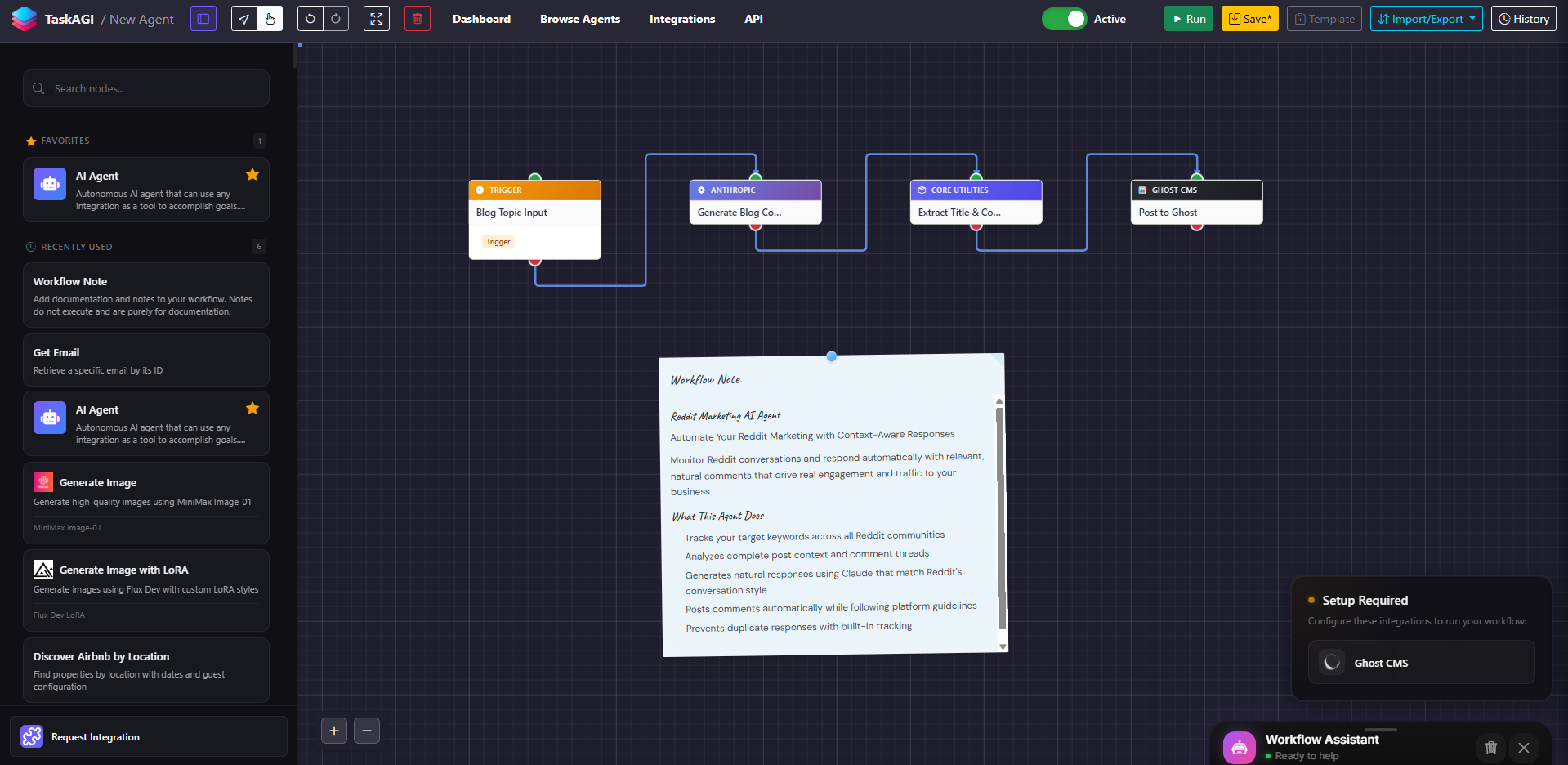
TaskAGI now lets you add documentation directly on your workflow canvas with Workflow Notes—a new feature that turns your automation builder into a collaborative workspace where you can explain what each section does, mark TODOs, and keep setup instructions right where you need them.
If you’ve ever built a complex workflow, stepped away for a month, and came back wondering what half your nodes actually do, you know the problem. Workflow Notes solves this by giving you a space to document your automations without adding clutter to your actual logic.
What Are Workflow Notes?
Workflow Notes are text annotations you can place anywhere on your TaskAGI workflow canvas. They’re purely for documentation—they don’t execute, don’t affect your automation, and don’t slow anything down. Think of them as digital sticky notes built into your workflow builder.
Unlike external documentation that lives in separate tabs or scattered Notion pages, these notes live right on your canvas. You see them when you open your workflow. You update them when your logic changes. They stay in sync with your actual automation.
Key Features That Actually Matter
Rich Text Editing for Real Documentation
Workflow Notes use a Quill editor, so you can format your documentation properly. Bold important variables. Create lists for setup steps. Add code blocks for API references. Include links to external resources. Add images if you need visual explanations.
This isn’t plain text—it’s actual formatted documentation that looks professional and reads clearly.
Visual Organization with Color Themes
Six color options (yellow, blue, green, pink, purple, gray) let you visually categorize different sections of your workflow. Use yellow for TODOs, blue for configuration notes, green for completed setup steps. Your team immediately understands what each note is about just by looking at the color.
Resizable and Collapsible for Space Management
Notes resize by dragging the corner, and your preferred size persists when you reload. Collapse notes to save canvas space when you’re actively building, expand them when you need reference information. Your layout preferences stick around.
Authentic Sticky Note Design
The interface includes subtle rotation, folded corner effects, and an elegant pin graphic. The handwritten Caveat font for titles gives it that genuine sticky note feel—it’s not just functional, it actually looks good on your canvas. The glassmorphic configuration modal with frosted glass effects fits TaskAGI’s modern aesthetic.
What You Can Actually Do With Workflow Notes
Explain Workflow Sections
Add a note above a cluster of nodes: “This section handles payment processing. Triggered by webhook from Stripe. Retries failed transactions after 5 minutes.” New team members or your future self understand the purpose immediately.
Document Configuration Requirements
Keep API keys, required environment variables, and setup steps visible. “Requires OpenAI API key in .env file. Max tokens set to 2000 for cost control.” No more hunting through Slack messages or forgotten setup docs.
Mark TODOs and Important Reminders
Yellow note: “TODO: Test webhook with production Stripe account before deploying.” Green note: “IMPORTANT: This workflow runs every 5 minutes. Monitor API rate limits.” Keep your team aligned on what’s pending and what’s critical.
Track Integration-Specific Details
Document why you chose specific nodes or settings. “Using Make’s HTTP module instead of native API call because it handles retries automatically.” “Zapier integration here because CRM webhook was unreliable.” Future you will appreciate knowing the reasoning.
Create Setup Guides for Team Members
Build a workflow and annotate it like an interactive tutorial. Each note explains what that section does and why. New team members can learn your automation logic by reading the canvas instead of asking questions.
How Workflow Notes Fit Into Your Workflow
TaskAGI’s workflow builder already lets you connect AI models, integrations, automations, scrapers, and payment processors visually. Workflow Notes adds the missing layer: human-readable context.
Your workflow canvas becomes a complete system—the nodes show what executes, and the notes show why it executes that way. This matters when:
- You’re collaborating with teammates who need to understand your logic
- You’re revisiting a workflow months later and need to remember what you were thinking
- You’re troubleshooting an issue and need to trace through the documented intent
- You’re handing off a workflow to someone else and want them to succeed
Workflow Notes vs. External Documentation
You could document your workflows in Notion, Confluence, or a shared Google Doc. But that creates friction:
| Documentation Method | Friction Point | Workflow Notes Advantage |
|---|---|---|
| External docs (Notion, Confluence) | Documentation lives in a different tool. Gets out of sync. Requires switching tabs. | Lives on your canvas. Updates in real-time. Always visible. |
| Comments in code | Only works for custom code nodes. Doesn’t scale across integrations. | Works everywhere on your canvas. Works for any node type. |
| Node naming conventions | Limited space. Can’t explain complex logic in a node title. | Unlimited formatting. Rich text. Code blocks and links. |
Workflow Notes keep documentation where it belongs: right next to the automation it describes.
Best Practices for Using Workflow Notes
Use Color Strategically
Establish a color system your team understands. Yellow for TODOs, blue for configuration, green for completed setup, pink for integrations that need monitoring. Consistency makes your canvas readable at a glance.
Keep Notes Concise
A note should answer one question: “What does this section do?” or “What do I need to know here?” Don’t write essays. Two or three sentences usually suffices. If you’re writing a paragraph, you probably need to split it into multiple notes.
Position Notes Near Relevant Nodes
Place documentation close to the nodes it describes. A note about your Stripe integration should sit near your Stripe node, not floating on the opposite side of the canvas. Proximity creates clarity.
Update Notes When Logic Changes
When you modify a workflow section, update the corresponding note. Stale documentation is worse than no documentation. Make it a habit: change the workflow, update the note.
Use Collapse for Clean Canvas Views
When you’re actively building, collapse non-essential notes to reduce visual clutter. Expand them when you’re reviewing logic or onboarding someone new.
Real Workflows That Benefit From Notes
E-commerce Order Processing: “This section waits for payment confirmation from Stripe. If payment fails, it triggers a retry after 2 hours. After 3 failed attempts, it notifies support via Slack.” Without notes, new team members won’t understand why there are three separate payment nodes.
Lead Scoring and CRM Sync: “Scores leads based on engagement: email opens = 5 points, demo request = 25 points, pricing page visit = 10 points. Syncs to HubSpot and triggers sales outreach if score exceeds 50.” This context is critical when someone needs to adjust the scoring logic.
Content Scraping and Publishing: “Scrapes TechCrunch daily at 6 AM UTC. Filters articles by keyword relevance using AI. Publishes to Medium and Twitter. Retries failed publishes once after 1 hour.” Without these notes, someone modifying the workflow might accidentally change the schedule or remove the retry logic.
FAQ: Workflow Notes
Do Workflow Notes affect automation performance?
No. Notes are purely visual and metadata—they don’t execute, don’t add latency, and don’t consume resources. Your workflow runs exactly the same with or without notes.
Can I share notes with team members?
Yes. When you share a workflow in TaskAGI, the notes come with it. Your team sees the documentation when they open the workflow.
What happens if I delete a note?
It’s gone. There’s no undo for individual notes, so be intentional about deletion. You can always recreate it if needed.
Can I export workflows with notes?
Yes. When you export or share a workflow, notes are included as part of the workflow definition.
Are there limits on note size or number?
No hard limits. Add as many notes as you need. Keep individual notes reasonably sized for readability, but TaskAGI handles large numbers of notes without performance issues.
Start Documenting Your Automations
Complex workflows deserve clear documentation. Workflow Notes let you keep that documentation where it actually gets used—on your canvas, visible every time you open your automation.
Open any workflow in TaskAGI and add your first note. Use it to explain what a section does, document a configuration requirement, or mark a TODO. You’ll immediately see why having documentation right on your canvas matters.
Leave a Reply