
Building organized AI agent workflows just got easier. TaskAGI now includes smart alignment snapping and node position locking, two features that solve real friction points in workflow design. Your nodes now snap into magnetic alignment, and you can lock important nodes in place to prevent accidental movement.
If you’ve spent time manually adjusting node positions or accidentally dragged a critical node while editing nearby components, these updates are for you.
What’s New: Two Workflow Editor Improvements
Smart Alignment Snapping
Nodes now automatically snap into alignment when their edges line up with other nodes. As you drag a node across the canvas, it magnetically locks into position when it aligns horizontally or vertically with adjacent nodes. No more pixel-perfect manual positioning.
This works in real-time as you build. Drag a node near another, and when the edges align, it snaps into place. The result: workflows that look organized and intentional without requiring obsessive positioning.
Node Position Locking
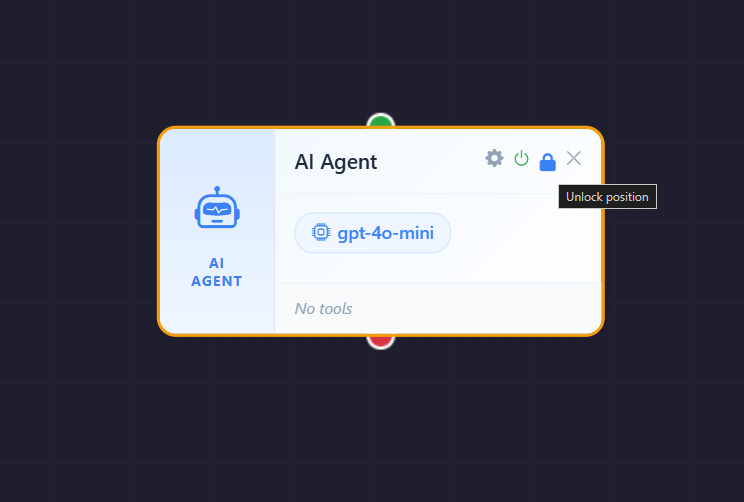
Each node now includes a lock button in its header. Click it to prevent that node from being dragged. Locked nodes display an amber border and lock icon, making it immediately clear which nodes are protected.
Locking only prevents movement. You can still:
- Configure node settings and parameters
- Delete the node if needed
- Enable or disable the node
- Connect or disconnect it from other nodes
The lock is purely about preventing accidental repositioning during workflow edits.
Why This Matters for Workflow Organization
Workflow complexity grows as you add more nodes. A typical AI agent workflow might connect 8-15 nodes across different integrations—API calls, AI models, data transformations, conditional logic, and output destinations. Once you’ve arranged them well, you don’t want that arrangement disrupted.
Before these updates, every time you edited a nearby node or added a new connection, you risked accidentally moving something. Snapping and locking eliminate that problem.
The Snapping Advantage
Alignment snapping saves time during the build phase. Instead of manually dragging nodes into neat rows and columns, you get automatic alignment. This is especially useful when:
- Building workflows with parallel node branches (multiple decision paths)
- Creating workflows with sequential stages (input → processing → output)
- Organizing nodes by function (all integrations on the left, AI models in the center, outputs on the right)
- Adding new nodes to an existing workflow and maintaining layout consistency
Clean organization isn’t just aesthetic. It makes workflows easier to understand, debug, and modify later. When you return to a workflow after weeks away, a well-organized layout helps you quickly grasp the logic.
The Locking Advantage
Node locking protects your layout once it’s finalized. Lock your core nodes—the critical decision points, your main AI model, your primary integrations—and you can freely edit other parts of the workflow without accidentally moving them.
This is particularly valuable in team environments where multiple people might edit the same workflow, or in production workflows where you’re making small tweaks without wanting to disrupt the overall architecture.
How to Use These Features
Enabling Alignment Snapping
Alignment snapping is automatic. Simply drag nodes across your workflow canvas. When the edge of one node aligns with another, it snaps into place. You’ll feel the magnetic lock as it happens.
No settings to enable or disable—it works out of the box.
Locking a Node
To lock a node:
- Look at the node header (the top bar with the node name)
- Click the lock icon in the header
- The node border turns amber and displays a locked icon
- The node can no longer be dragged
To unlock, click the lock icon again. The amber border disappears, and the node is draggable once more.
Real Workflow Scenarios Where This Helps
Multi-Stage AI Agent Workflows
Imagine a customer support AI agent that processes tickets through multiple stages: intake → AI analysis → CRM update → Slack notification → email response. You’d arrange these nodes in a clean vertical or horizontal flow.
With snapping, you quickly align them. With locking, you protect the core flow while you add conditional branches for edge cases (escalation paths, special handling rules, etc.).
Complex Data Processing Workflows
A web scraping workflow that collects data, transforms it, validates it, and sends it to multiple destinations might have 12+ nodes. Snapping helps you organize scrapers on the left, transformations in the middle, and destinations on the right. Locking protects your transformation logic while you adjust destination nodes.
Team-Built Workflows
When multiple team members contribute to a workflow, node locking prevents accidental changes. One person might lock the AI model and core logic, while another handles integration setup. Clear visual indicators (amber borders) show what’s protected.
Best Practices for Workflow Organization
Use snapping during design, locking during operation. While building, rely on snapping to keep nodes aligned. Once you’re happy with the structure, lock critical nodes before handing off to team members or moving to production.
Lock in layers. Don’t lock everything. Lock your core logic and critical integrations, but leave secondary nodes and new additions unlocked so they’re easy to modify.
Color-code mentally. The amber border on locked nodes is your visual cue. At a glance, you know which nodes are protected and which are flexible.
Document your locks. If working in a team, let others know which nodes you’ve locked and why. A locked node protecting critical AI model logic is different from one protecting a temporary integration setup.
Comparing Workflow Builders: Organization Features
TaskAGI isn’t alone in offering workflow builders. Platforms like Make, Zapier, and N8N all provide node-based automation. Here’s how alignment snapping and node locking compare:
| Feature | TaskAGI | Make | N8N | Zapier |
|---|---|---|---|---|
| Smart Alignment Snapping | ✓ Yes | Limited | Manual | N/A |
| Node Position Locking | ✓ Yes | No | No | N/A |
| Visual Lock Indicators | ✓ Yes (Amber) | — | — | — |
| Lock Preserves Editing | ✓ Yes | — | — | — |
TaskAGI’s approach is intentional: snapping speeds up design, locking protects finalized layouts. Both features work together to solve the real problem of workflow organization at scale.
FAQ: Alignment Snapping and Node Locking
Can I disable alignment snapping if I prefer manual positioning?
Currently, snapping is always active. If you need fine-grained control over node positioning, you can still position nodes precisely—the snapping will engage when edges align, but you can position nodes at any distance you choose.
If I lock a node, can I still delete it?
Yes. Locking only prevents dragging. You can still delete, configure, enable/disable, and reconnect locked nodes. The lock is purely about preventing accidental movement.
Do locked nodes affect workflow execution?
No. Locking is a design-time feature only. It doesn’t change how your workflow runs or any node behavior. It’s purely visual and interactive—a safety feature for the editor.
Can I lock multiple nodes at once?
You lock nodes individually via the lock button in each node header. If you need to lock many nodes, you’ll click each one. This is intentional—it forces you to be deliberate about which nodes you’re protecting.
What happens if I lock a node, then need to move it later?
Simply click the lock icon again to unlock it. The amber border disappears, and you can drag it freely. No permanent changes—locking is reversible at any time.
What’s Next for Workflow Design
Alignment snapping and node locking are foundational improvements that make TaskAGI’s workflow editor more intuitive and reliable. These features reflect a core principle: the editor should get out of your way and let you build faster.
Whether you’re building a simple two-node workflow or a complex 20-node AI agent, these tools keep your design organized and protected. Start using them in your next workflow, and you’ll quickly see why they matter.
Build faster. Organize better. Protect your layouts. That’s what snapping and locking deliver.
Leave a Reply